This article shows how to use FileZilla (free FTP client for Windows, Linux and Mac OS X) in order to backup a domain.
Solution
In order to use FileZilla CLIENT you will have to download and install it on your system. You can download the FileZilla Client from here:
http://filezilla-project.org/
1. Open FileZilla and connect to the Axigen FTP server using the admin credentials.

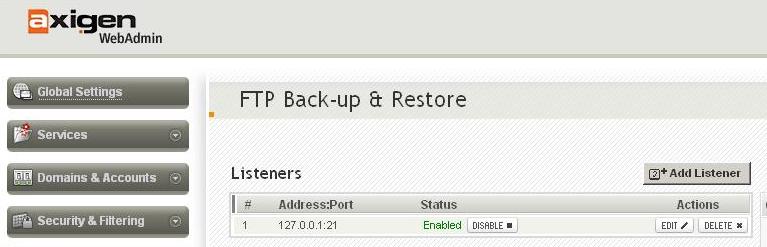
2. If the connection is refused, most probably the Axigen's FTP listener is setup to listen for connections only on the loopback interface (127.0.0.1). In order to change the FTP Listener to accept connections from all interfaces click "Edit" for the listener. (this is done via Webadmin -> Back-up & Restore context).
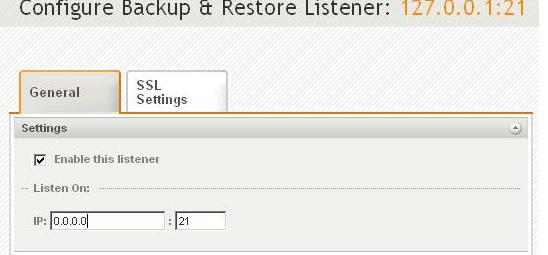
3. On the "Listen On" text form change from "127.0.0.1" to "0.0.0.0" in order for the FTP service to listen on all interfaces. Don't forget to press "Save Configuaration" button. It is a good practice to restrict access to this service only for a few, trusted IP addresses for security reasons.

4. After connecting to the FTP service, on the right panels of the FileZilla Client you have the Axigen's domain storage structure which you can browse. On the left you have the structure of your local system.
In this HowTo we will backup the "example.test" domain to our local folder named "backup". In order to backup, simply drag-and-drop the "example.test" folder on the right panel over the "backup" folder on the left panel.

5. The domain "example.test" is now saved with all the data into the local "backup" folder.

http://filezilla-project.org/
1. Open FileZilla and connect to the Axigen FTP server using the admin credentials.
2. If the connection is refused, most probably the Axigen's FTP listener is setup to listen for connections only on the loopback interface (127.0.0.1). In order to change the FTP Listener to accept connections from all interfaces click "Edit" for the listener. (this is done via Webadmin -> Back-up & Restore context).
3. On the "Listen On" text form change from "127.0.0.1" to "0.0.0.0" in order for the FTP service to listen on all interfaces. Don't forget to press "Save Configuaration" button. It is a good practice to restrict access to this service only for a few, trusted IP addresses for security reasons.
4. After connecting to the FTP service, on the right panels of the FileZilla Client you have the Axigen's domain storage structure which you can browse. On the left you have the structure of your local system.
In this HowTo we will backup the "example.test" domain to our local folder named "backup". In order to backup, simply drag-and-drop the "example.test" folder on the right panel over the "backup" folder on the left panel.
5. The domain "example.test" is now saved with all the data into the local "backup" folder.
OS:
LinuxWindowsFreeBSDNetBSDOpenBSDMAC