I just upgraded to the newest version of Axigen server and tried this myself. Unfortunately, I get the same error message. Based on the announcement, my first thought is that it might be a licensing issue, since the page says:
“The new Axigen mobile apps for iOS and Android require Axigen X7 together with a license that includes the Mobile Apps add-on.”
Note that per the instructions on the page, I did apply for new license, but it doesn’t seem to be fixing the issue. While the license version shows as 10.7, it gives me the same expiration date after updating it. (Note: Yes, I can get to webmail from the same mobile device.)
The URL format is right: https://FQDN:port is what the app expects when WebMail listens on a non-standard port.
When WebMail opens fine in the phone’s browser, but the Android app says “Server connection error”, the usual cause is the certificate chain served on that port. The Android app validates SSL strictly and refuses a chain with a missing intermediate certificate, even though browsers accept it because they can fetch the missing piece on their own. From the X7 release notes: “The mobile apps require strict SSL certificate validation. Ensure your server uses a valid, properly configured SSL certificate with correct hostname matching and the complete certificate chain included.”
You can check what the port serves from any Linux or macOS machine:
A healthy listener lists the certificate followed by its intermediate(s) and ends with Verify return code: 0 (ok). 21 (unable to verify the first certificate) means an intermediate is missing, and 18 (self-signed certificate) means a self-signed certificate, which the apps do not accept either.
To fix it, in WebAdmin go to Services > WebMail, edit the listener on that port, open SSL Settings > Show SSL Configuration, and set the Certificate authorities file to a PEM file holding the full intermediate chain from your certificate provider. Save, then restart the WebMail service and try the app again.
Once the app connects, you can spare your users from typing the URL at all by publishing a _axigen.<your-email-domain> TXT record in public DNS. The app reads it at first sign-in, so users only enter their email address and password. The value is the WebMail hostname withouthttps://, with the port appended when it is not 443, for example:
Thanks @MaXiM for the response. My guess is that it’s probably the certificate chain. When I pull the verify return code, it comes back: “21 (unable to verify the first certificate)”
A few notes:
- I’m using the default listening port of 443 for the WebMail, which is where the cert is bound.
- I’ve tried the URL with and without the port on the client with the same result.
- My URL is basic - just https://mydomainname.TLD - no hostname or anything. It’s the only thing that’s answering on that port for this box.
- I do have the new TXT record for autodiscovery.
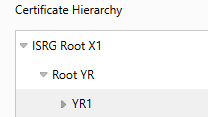
- The certificate comes from the Lets Encrypt capability within Axigen. One thing I do see is when I look at the list of SSL certificates, that one says, “No CA found.” Per your instructions, I did look at the SSL settings of the listener and the CA PEM file isn’t listed. My guess is that this isn’t downloaded as part of the built-in autorenewal? When I look at the CAs in my system, see ISRG Root X1, but not ISGR Root YR (which I think is the intermediate CA). Interestingly, when I pull up the webmail from a browser, it seems to be there:
Update: I did download the subordinate (Intermediate) CAs and added it to the server (at least the config says it’s there,) but am getting the same message. OpenSSL query shows the same message about being unable to verify.
Thanks for running the check. Code 21, together with “No CA found” means the 443 listener is sending only your own certificate, without the Let’s Encrypt intermediate (YR1 in your screenshot) and the “Root YR” certificate that links it to ISRG Root X1. The intermediate you added isn’t being served yet; otherwise, the result would have changed.
Let’s Encrypt picks one of several intermediates (YR1, YR2, YR3) at each renewal, so we publish a bundle with all of them plus the cross-signed Root YR. On Linux:
On Windows, download the same file into the Axigen working directory.
Then in WebAdmin go to Services > WebMail, edit the 0.0.0.0:443 listener, open SSL Settings > Show SSL Configuration, set Certificate authorities file to cert_auth.LE-YR.2026-01.pem and save. It has to be set on the listener itself; a CA added anywhere else does not change what the listener sends.
Running the openssl command again should then list three certificates, the last one being Root YR, and end with Verify return code: 0 (ok). Once you see that, try the app again.
Thank you @MaXiM. That intermediate CA seems to be the fix. If I might make a suggestion, since the new Axigen client needs this, can that file be added to the standard install package? This way, as Let’s Encrypt / ISRG renews them in the future, they can automatically get added to our systems. Also, if Axigen is configured to use Let’s Encrypt, could it be automatically added to that field, or a notification pop up to tell the admin to do this? (If there is one, I missed it.)
A couple of additional items - more queries to make sure that they’re not problems:
- When I use the OpenSSL command, it now shows the certificate chain, but it also still shows: “verify error:num=20:unable to get local issuer certificate”, so I was curious if that’s due to the cert not having the CA info as part of it?
- In the WebAdmin SSL Certificates, my domain cert still shows as having “No CA Found”, but since adding the link to the CA file, does it matter?
Glad the app connects now, and thanks for the suggestion.
The num=20 line comes from the machine where you run openssl: it cannot find ISRG Root X1 in its own trust store. Point it at that root and the check ends cleanly:
Thanks for the info.
Unfortunately I have only self-signed certificate, so in this case it won’t work for me at all. I hadn’t planned on using a standard certificate, but I might reconsider. In the meantime, I’ll stick with the tried-and-tested email application.